This article has be allocated to the 'Demo' category. The menu item [page] has been set up as a Category blog so that it will display a specified number of articles from a specific category in a specified order. If there are many articles in the category, you can opt to show pagination at the bottom of the page.
By adding a 'read more' link under 'CMS Content v' in the editor menu, it will only display this part of the article as well as the 'Intro image'. Useful for modules with a list of the category articles (see sidebar-right). This section is the 'Intro text' part. Now click 'read more'...
Here you will see the rest of the text. When editing, you can click the ... in the menu for more options.
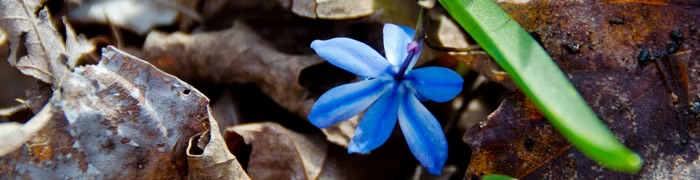
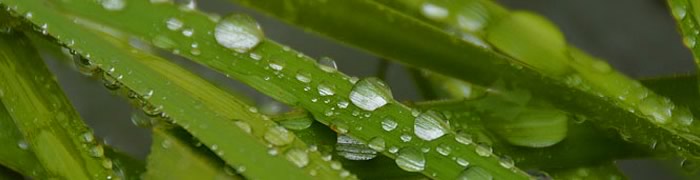
You may notice that the picture has changed. When creating your article, select the 'Images and Links' tab. You will see that there is an option to add an 'Intro Image' and a 'Full Article Image'. If you want the same image to appear in both circumstances, add it twice.
NB: please add descriptive text in the 'Image Description (Alt text)' field. This is for the visually impaired who may be using screen readers.
Your copyright information can go in the 'Caption' field. To add the copyright symbol, add this code: ©
Optional: in the 'Publishing' tab you can add a meta description. This is the text that will appear in Google searches if Google finds your article. If you don't add it, Google will simply use the first 300 characters of your article. (Don't bother with meta keywords).